
On this page
- What does a truly helpful software user manual look like?
- Before you write a single word: the decision matrix
- Phase 1: Build a task-based outline (not a feature list)
- Phase 2: Draft instructions—one action per step
- Phase 3: Add visuals where decisions happen
- Phase 4: Review, test, and publish with search in mind
- The stats that changed how I think about manuals
- Ghost errors: the weird stuff nobody warns you about
A software user manual should answer a user's question in under 60 seconds, guide them through a task with zero guesswork, and then get out of the way. That's it. But most manuals? They read like product brochures written by someone who already knows where every button is.
I've watched teams pour weeks into documentation that nobody reads—then wonder why support tickets keep piling up with the same three questions. The problem isn't effort. It's approach. So here's my promise: by the end of this post, you'll know exactly how to build a manual that actually reduces support load and makes users feel like they've got a friend walking them through every step.
What does a truly helpful software user manual look like?
A helpful software user manual is a task-focused guide that leads with what the user is trying to accomplish, uses annotated visuals at decision points, mirrors the exact language users type into support tickets, and can be scanned in under a minute per topic. It's a task map, not a feature catalog.
Purpose-built knowledge base platforms like HelpGuides are designed around exactly this philosophy—task-first article structure, fast full-text search, and a clean reading experience that gets out of the user's way the moment they find their answer.
Before you write a single word: the decision matrix
You need four things locked down before Step 1 makes any sense.
- An audience matrix. Not a vague "our users" statement. I mean a short grid: role, skill level, primary goal, and the top task they need help with. Writers who skip audience definition usually end up revising the entire manual later because the first draft targeted the wrong skill level.
- Access to real user questions. Mine your support tickets, onboarding calls, community threads. Don't guess. Teams that guess the questions instead of pulling real user language end up with docs that are less searchable and less useful.
- Subject matter experts on speed dial. Gathering accurate info from stakeholders isn't cleanup—it's foundational.
- The product open in front of you. Every UI label in your manual needs to match the live app exactly. If a button says "Save Draft," your doc can't call it "Save."
Verification check: You're ready to start when you can point to a written audience matrix, a list of real user questions pulled from tickets, and a confirmed SME who'll review your draft. If any of those are missing, pause.
Phase 1: Build a task-based outline (not a feature list)
Here's where most teams go sideways. They organize the manual by product structure—Settings, Dashboard, Integrations—instead of by what users are trying to do.
Flip it. Your table of contents should read like a list of jobs: "How to invite a team member," "How to export a report," "How to connect your CRM." Each section title should match the way users phrase their questions.
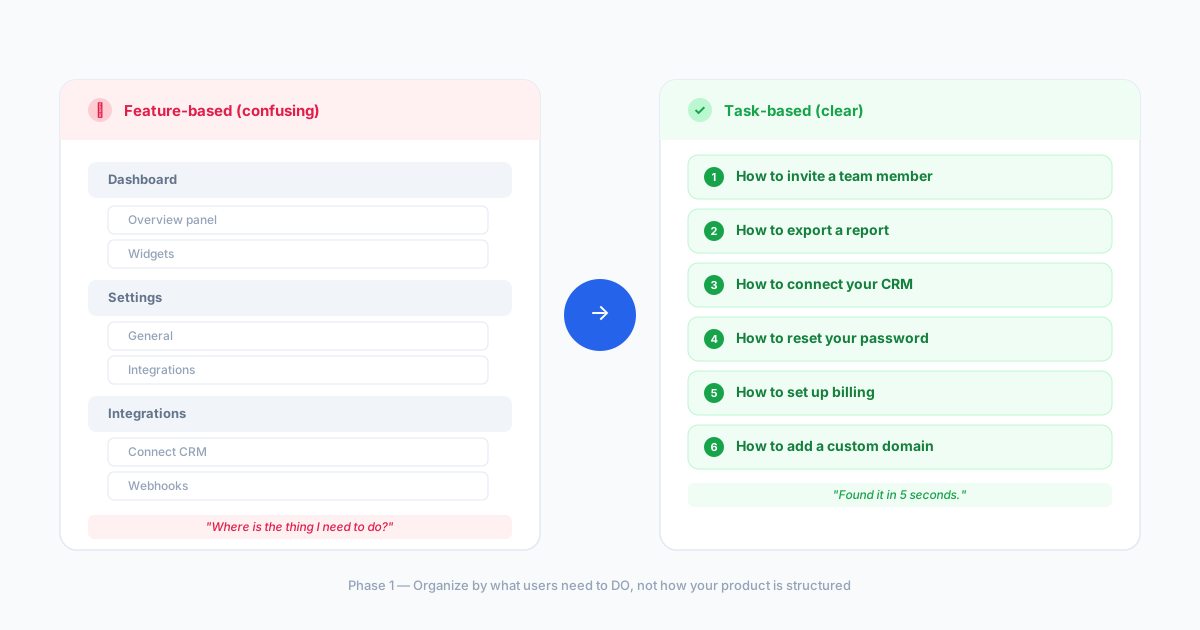
Visual checkpoint: Your outline looks like a task list, not a product sitemap. Every heading starts with an action verb or a question.
Verification: Hand the outline to someone outside your product team. If they can scan the table of contents and immediately find the task they need, you're good.
Friction warning: Users get lost when content is organized by internal product structure instead of the job they need to finish. I've seen this kill otherwise solid documentation. (Between us: I made this exact mistake on my first manual. Spent a week rewriting headings.)
In HelpGuides, articles are organized into named collections that map directly to user goals—making it straightforward to enforce task-based structure from the moment you create your first article.
Phase 2: Draft instructions—one action per step
Write each step so it can be completed without reading the next one. That's the rule. One numbered step, one action.
Combining multiple actions into a single step causes users to miss a prerequisite or skip a UI change. And that's when the "I'm stuck" tickets start rolling in.
Use simple language. Active voice. Contractions. If a step says "Navigate to the Settings panel and then click on the Integrations tab and select your preferred connection type"—break that into three separate steps.
Visual checkpoint: Each step ends with what the user should see on screen. "A green confirmation banner appears at the top of the page." "The toggle switches to blue." Give them proof they did it right.
Verification: Can someone with zero knowledge of your software complete the task using only your steps? Run a fresh-eye test. Internal reviewers miss gaps because they already know the workflow—this is exactly why external testing matters.
Quick Note: If you want to get started with your knowledge base fast, HelpGuides lets you generate a manual article just by posting a screenshot or copy-pasting a support ticket. You can even connect Claude and generate articles using a single prompt. I've used this to cut first-draft time dramatically—especially for repetitive how-to articles where the UI walkthrough is straightforward.
Phase 3: Add visuals where decisions happen
Screenshots and GIFs aren't decoration. They're proof.
But here's the nuance: annotate the decision point, not the whole screen. Users don't need a full-page screenshot with twelve red arrows. They need to see the exact button, the exact field, the exact confirmation state that proves success.
Too many visuals without labels creates clutter. Too few leaves readers guessing what "success" looks like. The sweet spot? One annotated screenshot per step where the UI isn't self-evident.
Visual checkpoint: Every screenshot has a highlight, callout, or arrow pointing to the single element the user needs to interact with.
Verification: Remove all your written instructions and look at just the screenshots in order. Can someone roughly follow the task from images alone? If yes, your visuals are doing their job.
If you're using HelpGuides, you can upload screenshots directly in the article editor and embed them inline—no external image hosting needed. The AI article generation feature even places images at the correct steps automatically when you generate from screenshots.
Phase 4: Review, test, and publish with search in mind
Add search-friendly headings. Build a short FAQ section. And—this is the part people skip—tie your update cadence to your release cycles.
Manuals decay fast in SaaS. Outdated screenshots and deprecated UI labels are a common trust killer. If your product ships updates every sprint, your docs need a matching review rhythm.
Visual checkpoint: Your published manual has a working search function, descriptive section titles that match user phrasing, and a "last updated" date visible on each article.
Verification: Search your own manual for a common user question using the exact words a customer would type. If the right article doesn't surface in the top result, your headings need work.
For teams managing ongoing documentation across multiple products, a solid knowledge base setup makes the difference between docs that stay current and docs that quietly rot.
The stats that changed how I think about manuals
I was digging into the data and a few numbers stuck with me. Users want a manual to answer their question in under 60 seconds—anything longer and they bounce. Teams that mine real support tickets for documentation topics see a measurable drop in repeated questions. And writers who run a "user without context" test before publishing catch gaps that internal reviewers miss nearly every time. One more: combining multiple actions into a single step is one of the top causes of user drop-off mid-task.
These aren't abstract stats. They're the difference between a manual that sits there and one that actually deflects tickets.
Ghost errors: the weird stuff nobody warns you about
"People say they can't find the answer, but it's literally in the doc."
I'll be honest, I got stuck here too, until I realized the problem wasn't content—it was labeling. If your section heading says "Managing Workspace Permissions" but users are searching "how do I add someone to my team," they'll never find it. Re-title sections using the exact language from your support tickets. This one fix alone can transform discoverability.
"The workflow is correct, but users stop at one step."
Check whether a button or field is disabled until another action happens. Many confusion points come from hidden UI states, not bad writing. Your manual might be perfectly accurate and still fail because it doesn't mention that the "Next" button stays grayed out until you fill in a required field.
You can explore HelpGuides documentation for examples of how task-based structuring handles these edge cases cleanly.
FAQ
How do I decide if my manual should be feature-based or task-based?
Go task-based. Organize content around what users are trying to accomplish, not around your product's navigation structure. Feature-based manuals make sense internally but confuse users who think in terms of goals, not menus. If your support tickets say "how do I export data," your manual heading should match that exact phrasing.
How many screenshots are too many in a user manual?
There's no magic number, but the rule I follow: one annotated screenshot per step where the UI decision point isn't obvious. If a step is "click Save," you probably don't need a visual. If a step involves choosing between three dropdown options in a modal, you absolutely do. Annotate the specific element, not the full screen.
How do I keep documentation accurate when the UI changes every sprint?
Tie your doc review cycle directly to your release cycle. Every sprint that ships a UI change should trigger a documentation check. Use a lightweight tracking system—even a shared spreadsheet—to flag which articles are affected by each release. And if your team uses a knowledge base platform with built-in versioning, that process gets significantly easier.
Should a user manual assume beginner or experienced users?
Write as if the reader has zero knowledge of your software, even if they're technically skilled. Someone can be an expert developer and still have no idea where your Settings panel lives. Add deeper references or advanced tips in separate sections so power users can skip ahead without beginners getting overwhelmed.
You've got everything you need. Go build the manual your users actually deserve—and then test it with someone who's never touched your product. That's where the real magic happens.
Frequently Asked Questions
Related articles

5 Surprising Ways to Lower Support Tickets (Without Burning Out Your Team)
A 12-person SaaS support team had 200+ articles and almost none of them matched what customers were actually asking. Three weeks later, tickets on their top five issues dropped by half. Here's the framework.

How to Write Help Articles That Actually Reduce Support Requests
Your support queue is lying to you. Every ticket means your help content failed before the customer hit Submit. Here's the system that dropped ticket volume 40% on covered topics.
How to Create a Software User Manual That Really Helps
A practical guide to building task-focused software documentation that reduces support tickets, guides users through every step, and stays accurate as your product evolves.